How to Edit Photos with AI (Without Photoshop)
 GetAIPhotoEditor
A practical guide to AI photo editing in the browser: upload a photo, describe the change, review the result, and download — with tips for backgrounds, retouching, and object removal.
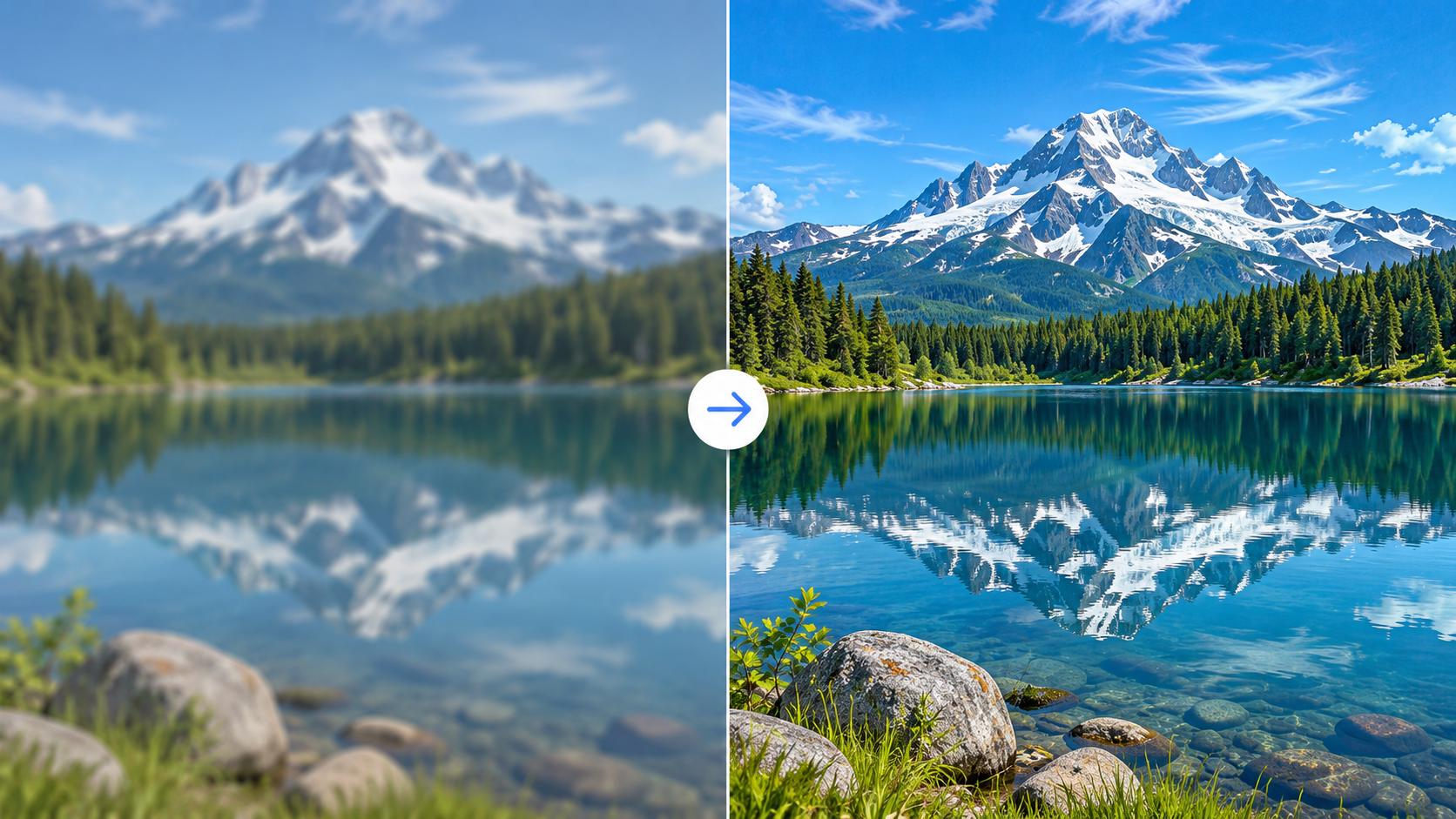
You do not need desktop software to clean up a product shot, soften a portrait, or erase a passerby. An AI photo editor lets you describe the change in everyday language and generate a new version in the browser.
The basic workflow
- Choose a clear photo — JPG, PNG, or WebP works well. Good lighting and a sharp subject usually produce more reliable edits.
- Describe what should change — Be specific: “replace the background with a soft studio gray” beats “make it better.”
- Generate, then inspect — Check faces, edges, text, and small products before you download or share.
- Refine if needed — Adjust the prompt and try again when a detail looks off.
On GetAIPhotoEditor you can prepare the image and prompt before signing in. Generating a standard 1K edit uses credits after you sign in.
Common edits that work well
- Background changes — Studio, outdoor scenes, or cleaner e-commerce backdrops. Watch hair edges and reflections.
- Object removal — Ask to remove a specific item and reconstruct the area behind it. Crowded scenes may need a second pass.
- Portrait retouch — Soft skin cleanup or lighting tweaks while keeping the person recognizable.
- Enhancement — Brighter light, clearer colors, or a more polished look. Generative enhancement is not lossless recovery of lost detail.
Tips for better prompts
- Name the subject you want to keep unchanged.
- Describe the new look in concrete terms (lighting, place, mood).
- Mention what must stay the same (face, logo, product shape).
- Avoid vague words like “fix” or “improve” without a target.
When to use traditional tools instead
AI editing is strong for fast creative changes. Pixel-perfect masks, batch catalogs with identical crops, and print-critical color work still favor desktop editors. Many people use both: AI for a first pass, then a traditional tool for final control.
Start editing
Open the AI photo editor, describe the change you want, and review every result before you publish it.