 Get AI Photo Editor
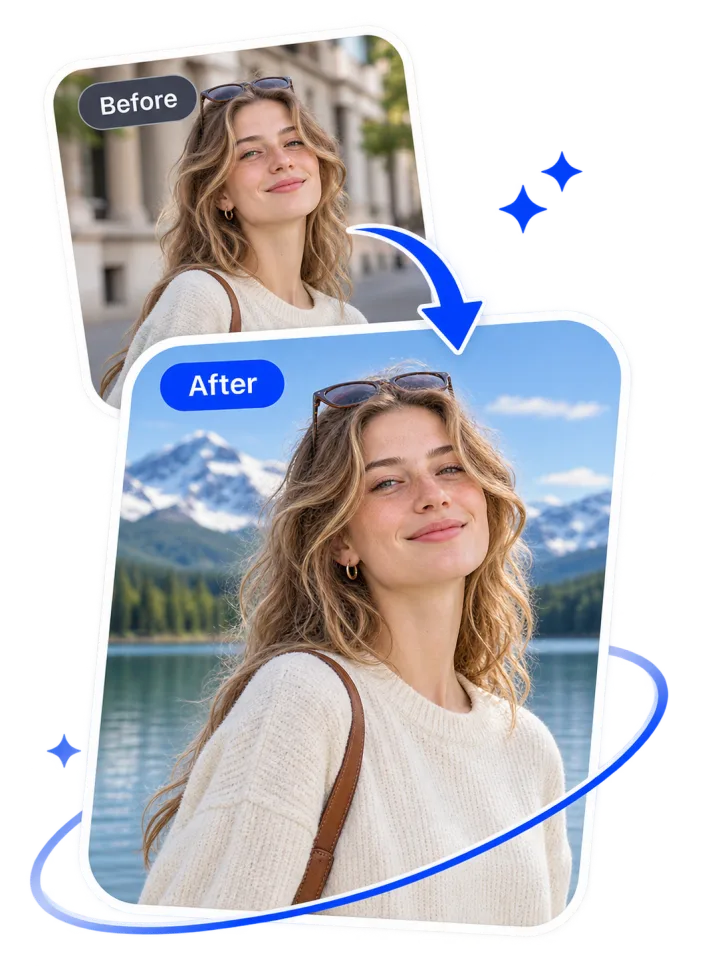
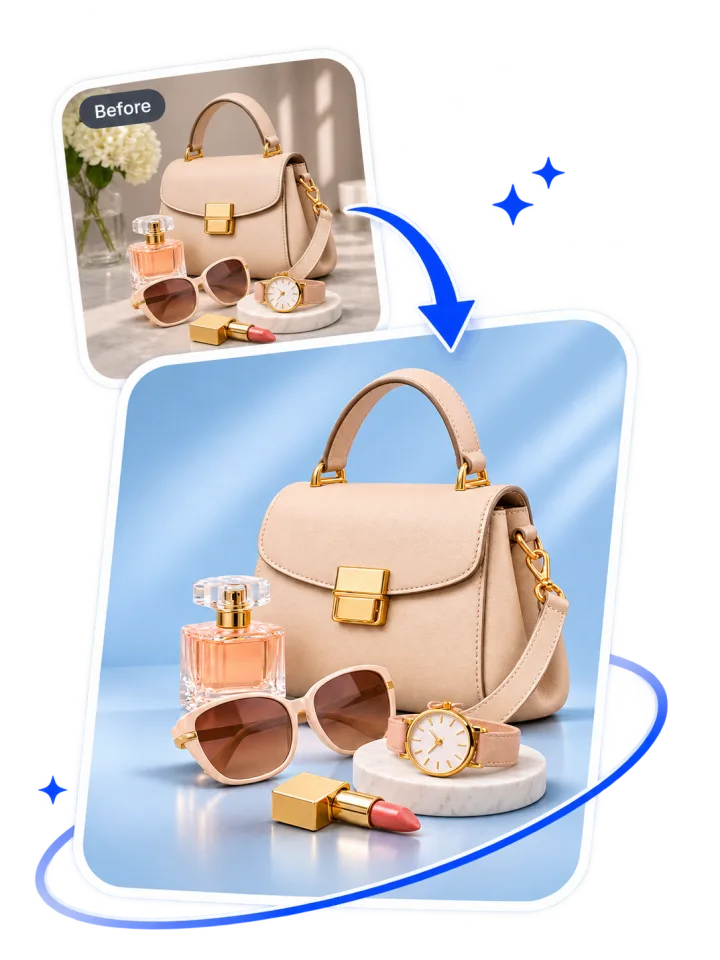
Keep your original subject
AI isolates the original person, product or pet as a transparent cutout instead of generating a new subject. Review delicate edges before downloading.
Replace the background with a color, preset scene, or your own image — keep the original subject.
Click to upload or drag your image here
Create a cutout, then choose a color or photo background.
10 free trial credits · Choose a color or photo after cutout
One cutout, many backgrounds
First isolate the subject with AI. Then try different colors and photo backdrops using the same transparent cutout. Background compositing happens in your browser, without generating your subject again.
AI isolates the original person, product or pet as a transparent cutout instead of generating a new subject. Review delicate edges before downloading.
Pick white, beige, blue or another preset, or choose your own solid color. Try several colors with the same cutout.
Select one of our background photos or upload your own JPG, PNG or WebP. A new background choice does not trigger another AI edit.
Real-world background ideas
Explore background replacement for product photos and portraits. The examples show different backdrops around the same subject while keeping the original foreground.
For online shops
Give product images a cleaner, more consistent look without reshooting each item. Remove a distracting table, room or shelf and place your cutout against a neutral studio background.
A white or softly colored background can keep the focus on the item for an online listing, catalog or promotional graphic. You can compare several backgrounds using one prepared cutout, and download the option that suits your store.
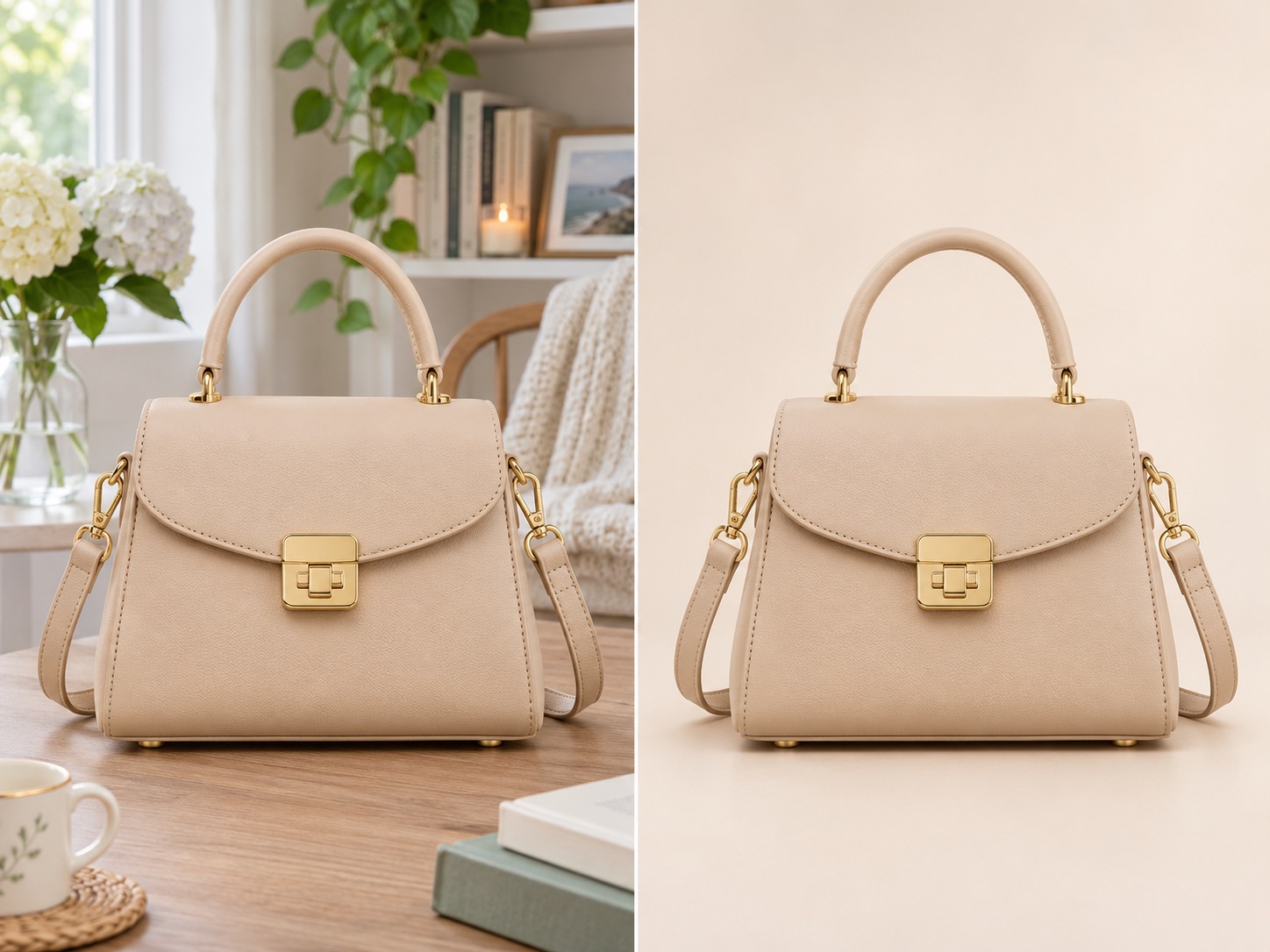 BeforeAfter
For profile pictures and travel memories
Replace a busy location behind a portrait with a softer outdoor setting, an office-style background or your own photograph. Keep the person in the foreground from your original image.
This is useful for profile pictures, personal graphics and social posts when the background distracts from the subject. Choose a preset scene, or upload a photo that fits the context you want.
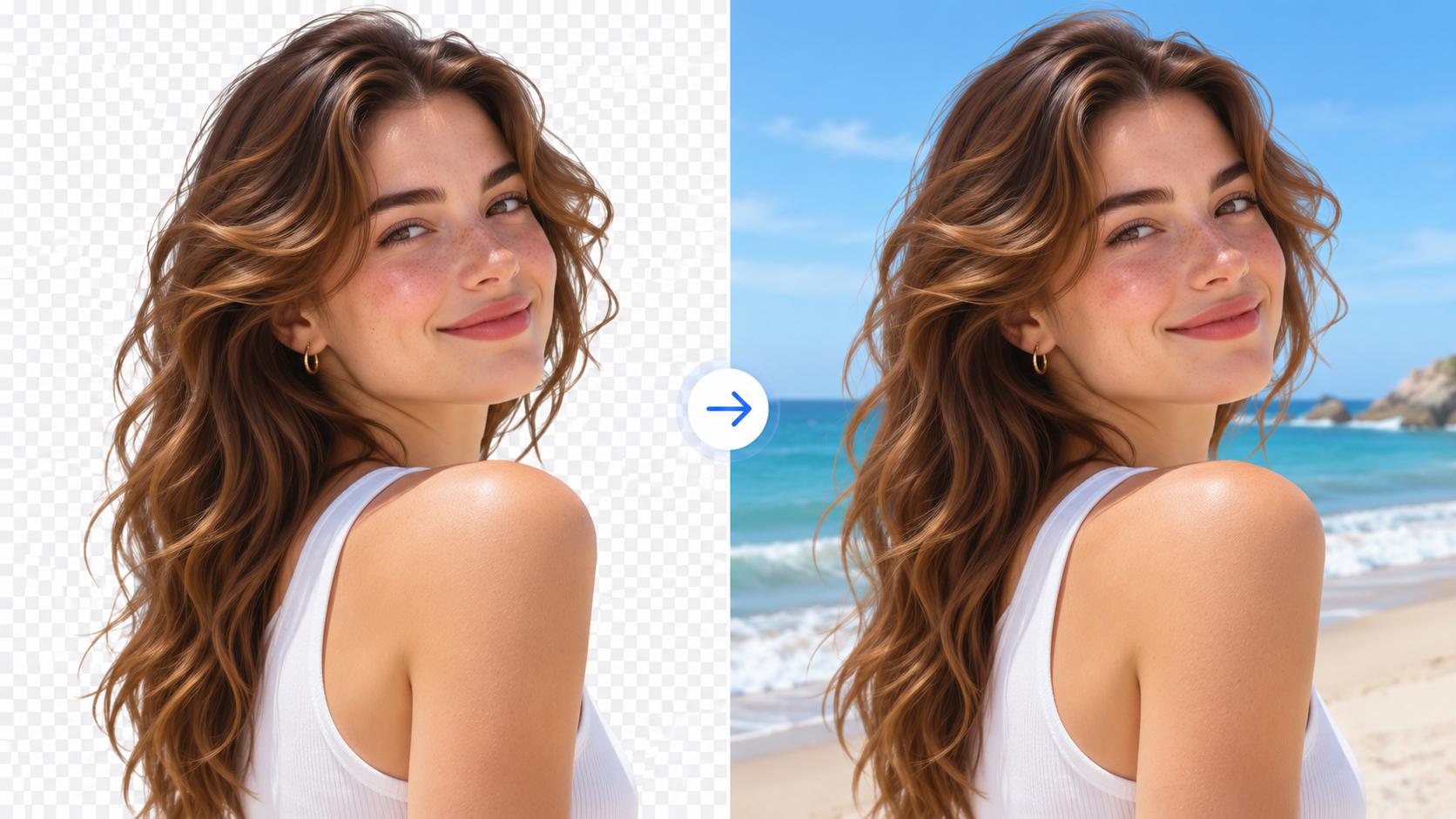 BeforeAfter
White backgrounds
Not every white backdrop is the same. Pure white (#FFFFFF) reads as a hard studio cut for marketplaces. Soft off-white or cream looks warmer for lifestyle shots. ID-photo style white is usually a bright, even field behind a head-and-shoulders crop. E-commerce white often favors a clean, high-key look so the product stays sharp—without claiming official document compliance.
After you prepare the cutout, pick Studio white or a custom near- white hex. Switching colors reuses the same cutout and does not charge another AI run. A solid white fill does not relight the subject or invent new shadows, so check edges and contrast before you download.
01
Choose a JPG, PNG or WebP image up to 10 MB with a clearly visible subject.
02
Click Prepare Background. The AI isolates the subject for 4 credits.
03
Select Studio white, or dial in a custom off-white with the color picker. Preview and download the PNG.
Start with Studio white, or preview other presets and a custom color after preparing your cutout.
Studio white
Soft blue
Warm beige
Blush pink
Mint green
Custom color
Focus on the background
Changing a background should not mean inventing a new face, product logo or clothing detail. Our background changer first separates the foreground from the uploaded photo, then places that same cutout onto a background you select.
Switching between preset backgrounds or colors does not rerun the image generator or redraw your subject. The cutout pixels are reused, so the face, clothing and product features in that cutout stay the same across background choices.
AI segmentation can still miss fine hair, fuzzy fur, glass or transparent fabrics. A new background will not automatically recreate matching light or cast shadows. Preview the result carefully, especially if you plan to use it professionally.
Need transparency instead of a replacement background? Use our transparent background maker.
Three steps
01
Choose a JPG, PNG or WebP image up to 10 MB. A clearly visible subject works best.
02
Click Prepare Background. The AI removes the original background for 4 credits.
03
Select a solid color, photo preset, or your own background image. Preview and download the PNG.
Choose this photo background changer when you want a new color or image behind your subject—including when you make the background white. For a transparent PNG cutout only, use our transparent background maker. Both tools share the same subject-cutout workflow.
Want to describe a brand-new scene in plain words? Use the AI Photo Editor for prompt-based editing instead.
Common questions
Upload your original photo, prepare the transparent subject cutout, and then select a color, preset scene or custom background image. Download the composition as PNG.
Yes. You can make the background white with the Studio white preset, or change the background to white with a custom hex near pure white. That covers clean product shots, softer off-white looks, and simple profile graphics—inspect edges and contrast before you download.
Yes. After preparing the cutout, select the Photo tab and upload a JPG, PNG or WebP background image up to 10 MB.
Yes. You start with 10 guest credits without signing up. The AI subject cutout costs 4 credits. Once the cutout is ready, switching among available colors and backgrounds does not cost additional credits.
The original foreground pixels are composited over the new background instead of redrawing the subject. Fine hair, glass, transparent fabric and shadows may still need review. Lighting on the subject is not automatically changed to match the new scene.
Not on this page. Here you can choose a color, a preset photo, or upload your own background. For prompt-based scene generation, use the main AI Photo Editor.
Yes. Select the Transparent option in the Color tab. For a dedicated transparent-cutout workflow, use our transparent background maker.
The source image and custom background upload support JPG, PNG and WebP up to 10 MB. Download the finished composition as a PNG.
Reserved credits are automatically returned if the background-removal task fails. Check the Privacy Policy for details about how uploaded images are handled.
Only edit photos you own or have permission to use. Review the Privacy Policy for information about image handling.
Start with 10 guest credits. Prepare the cutout, select your background and download the new image.