Best AI Photo Editors in 2026: 6 Tools Worth Trying
 GetAIPhotoEditor
Compare 6 AI photo editors for cleanup, product shots, design work, and upscaling. GetAIPhotoEditor leads for prompt-based browser edits—plus Adobe, Canva, Photoroom, Pixlr, and Topaz.
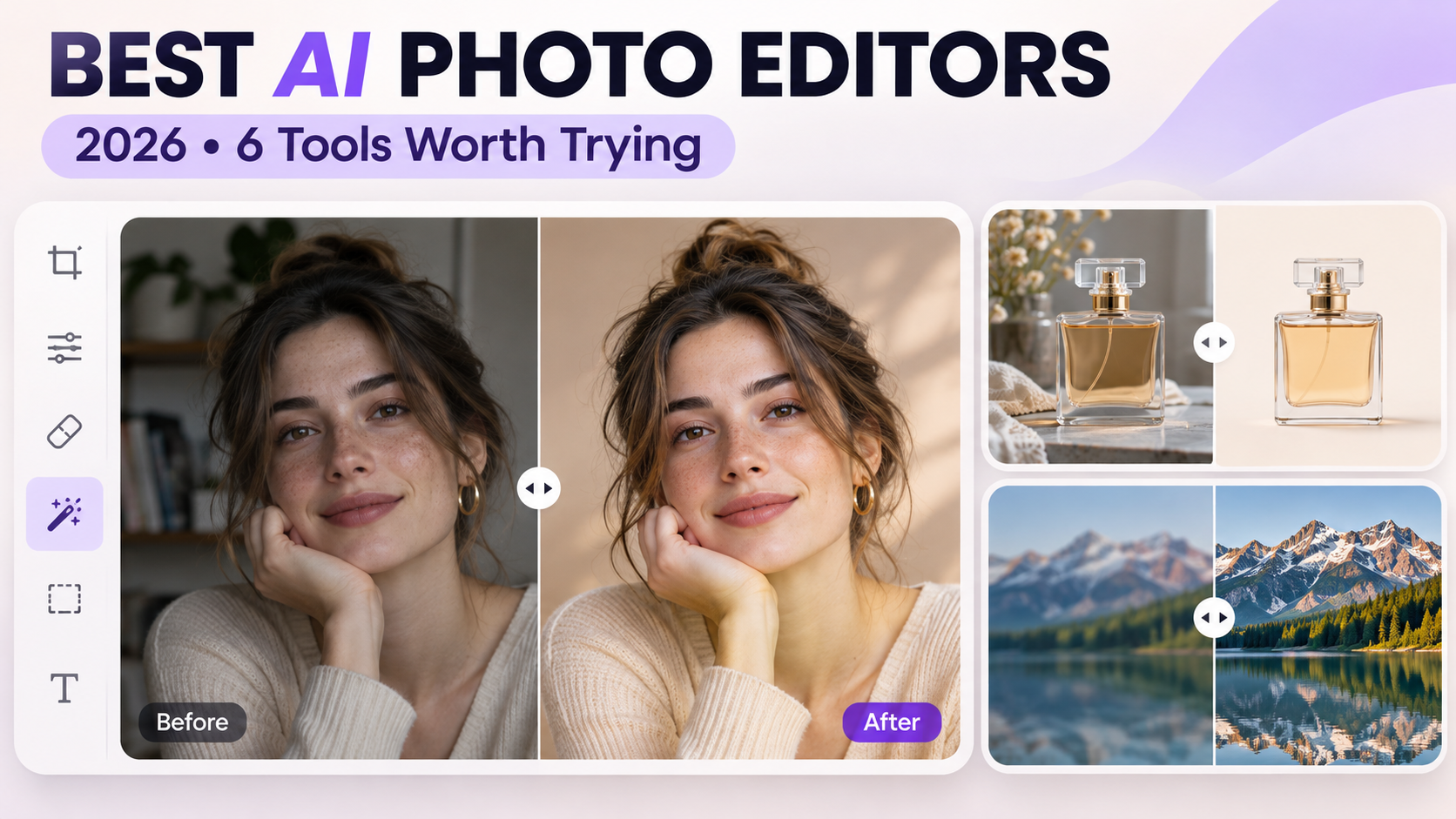
Picking an AI photo editor is less about “who has the most features” and more about how you want to change a photo you already have. Some tools want a brush and layers. Others want a short sentence. Some live in a design canvas. A few specialize in cutouts or recovering soft, noisy files.
This roundup shortlists six editors that cover the main jobs people search for in 2026. GetAIPhotoEditor is first for everyday prompt-based edits in the browser. The rest of the list covers precision desktops, design-first workflows, product cutouts, lightweight browser editing, and serious upscaling.
This guide is published by GetAIPhotoEditor and includes our own product. The recommendations are editorial judgments about workflow fit, not results from a controlled benchmark of all six tools. Third-party feature and plan references are linked below; checked November 17, 2026.
How to choose an AI photo editor
Match the tool to the edit, not the brand name:
- Prompt / chat edits — You describe the change in words (remove an object, swap a background, soften light).
- Brush / selection edits — You mark the area, then generate or fill.
- Design-first — The photo sits inside a poster, ad, or social layout.
- Single-job specialists — Cutouts for listings, or noise/upscale recovery.
- Desktop precision — Layers, masks, and print-critical control.
If you only need one cleanup a week, a browser AI photo editor is usually enough. If you retouch for clients every day, a desktop suite still earns its keep.
Quick comparison
| Tool | Best for | Runs on | Free to start | Watch-out |
|---|---|---|---|---|
| GetAIPhotoEditor | Prompt edits in the browser | Web | Credits to try | Generative edits need review on faces and edges |
| Adobe Photoshop / Firefly | Precision + generative fill | Desktop, web, mobile | Limited free / trial | Subscription cost; learning curve |
| Canva | Photos inside designs | Web and apps | Yes, with AI limits | Deep retouch is not the focus |
| Photoroom | Product photos and cutouts | Web and mobile | Export caps on free | Better for products than scenery |
| Pixlr | Lightweight browser editing | Web (also apps) | Free editor + paid AI | Free tier limits advanced AI |
| Topaz Photo | Noise, soft detail, upscaling | Mac and Windows | Usually paid | Desktop app; separate Topaz web tools available |
Pricing and free limits change often. Treat the table as a fit guide, then check each product’s current plan page before you buy.
1. GetAIPhotoEditor — Best for prompt-based browser edits
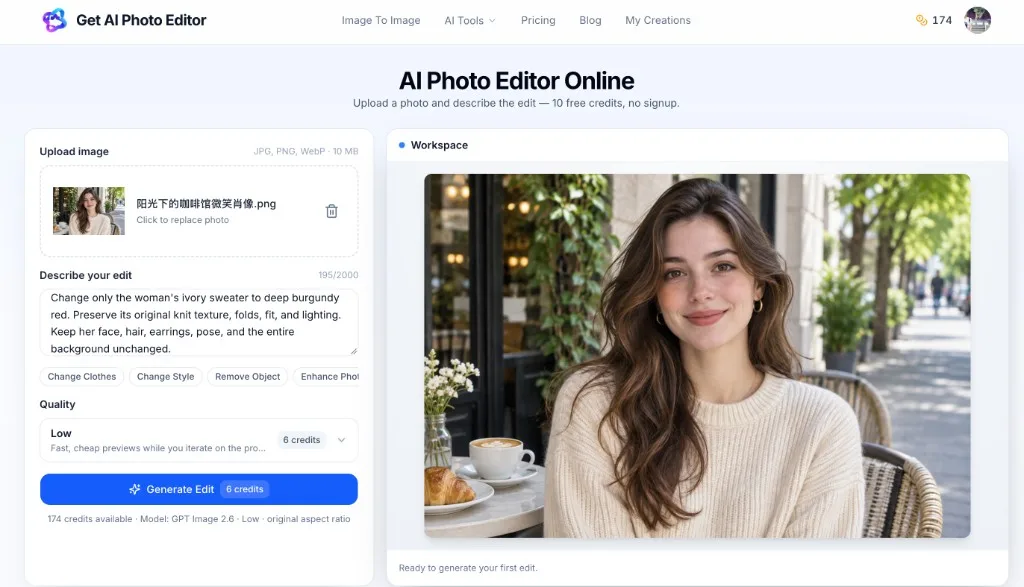
GetAIPhotoEditor is built for a simple loop: upload a photo, describe the change, generate, inspect, download. There is no desktop install and no need to learn layers for common jobs like object removal, background changes, portrait cleanup, or a style refresh.
Why we suggest it for prompt-based edits
- Fast path for existing photos — You already have the shot; you need a specific change, not a new design system.
- Plain-language prompts — Name what should change and what must stay the same.
- Credit pricing, no subscription required — Quality tiers map to credits (Low 6, Medium 10 default, High 13, Extra high 22, Max 50). New visitors get credits to try; packs are one-time on the pricing page.
- Practical tools — The tools page covers jobs like remove object, change background, enhance photo, and related flows that open the same AI photo editor.
How a typical edit works
- Upload a JPG, PNG, or WebP (up to 10 MB).
- Write a clear prompt (up to 2,000 characters).
- Pick a quality level.
- Generate, then check faces, hair edges, text, and small products.
- Download a PNG when it looks right—or refine the prompt and run again.
The live editor runs GPT Image 2.6 Flare under the on-screen label “GPT Image 2.6.” It does not currently offer a precision mask brush, Sunburst, GIF/SVG output, or multi-reference uploads. For model background, see What Is ChatGPT Images 2.6?.
Pros
- Browser-only workflow with a short learning curve
- Strong fit for object removal, backgrounds, and everyday retouch prompts
- Transparent credit costs tied to quality
Cons
- Generative results can drift outside the named area—always compare to the original
- Not a replacement for layered print production or RAW catalogs
Best for: creators, sellers, and marketers who want prompt-based AI photo edits without opening a heavy desktop suite.
Open the AI photo editor when you are ready to try a real photo. For a step-by-step walkthrough, see How to Edit Photos with AI.
2. Adobe Photoshop (with Firefly) — Best for precision control
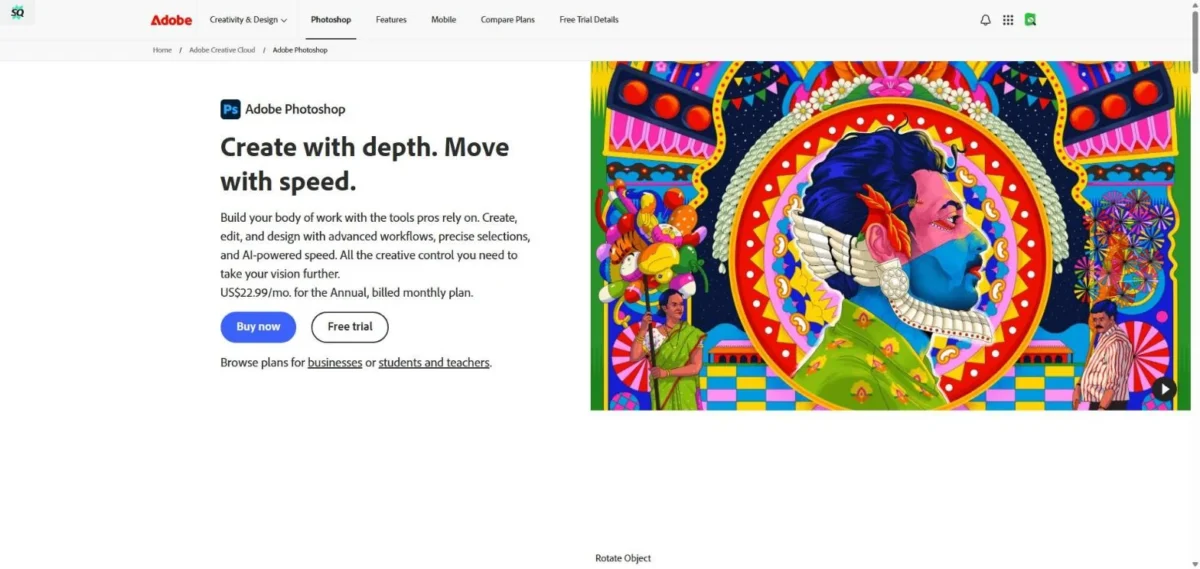
Adobe Photoshop combines manual and generative editing tools. Firefly-powered tools such as generative fill, expand, and object removal sit inside a familiar layer-and-mask environment. See Adobe’s product page for supported platforms, trial terms, and current plans.
Pros
- Masks, layers, and undo depth for client-critical work
- Generative tools sit next to classic retouching
- Strong ecosystem if you already shoot or design in Adobe apps
Cons
- Subscription cost adds up for light users
- More UI than you need for a one-off background swap
Best for: retouchers and designers who must correct AI output by hand.
Skip it if: you only edit a few photos a month and a browser AI photo editor like GetAIPhotoEditor covers those jobs.
3. Canva — Best for editing photos inside designs
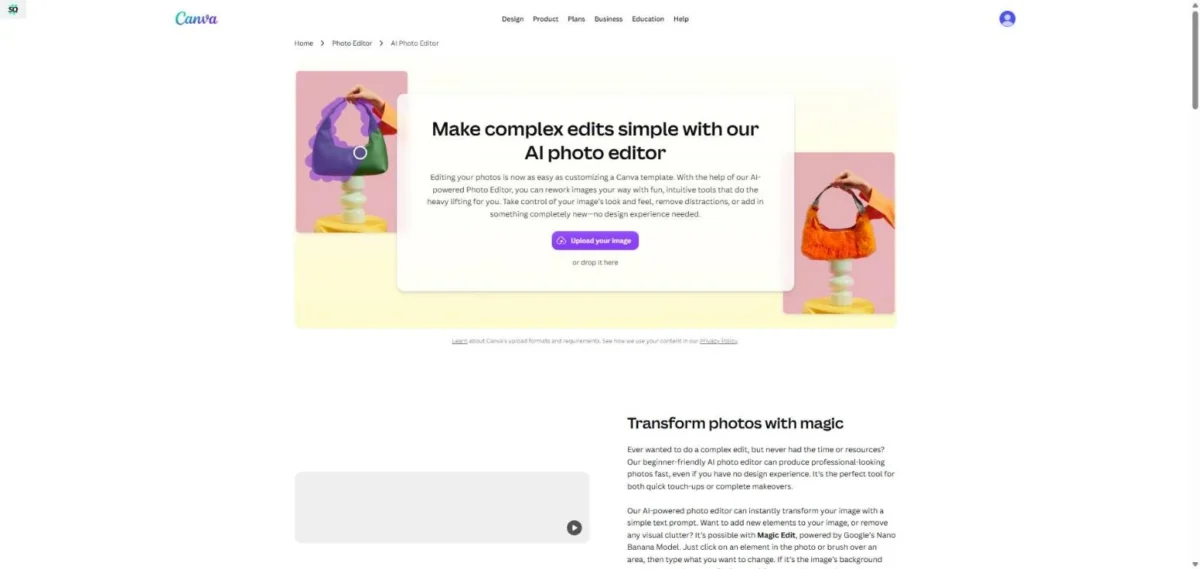
Canva’s AI photo editor works within its design environment. Its AI photo features (erase, expand, generate, resize) matter most when the photo is one piece of a larger layout—ads, carousels, pitch decks, thumbnails.
Pros
- Templates and brand kits next to the photo
- Easy for teams that already live in Canva
- Quick turnaround for social and marketing assets
Cons
- AI allowances and access to some tools depend on your Canva plan
- Not the deepest choice for portrait or product retouch alone
Best for: marketers and social teams who edit photos as part of a finished design.
Skip it if: free background removal is the only reason you are shopping—try a dedicated AI background remover or background changer instead.
4. Photoroom — Best for product photos and cutouts
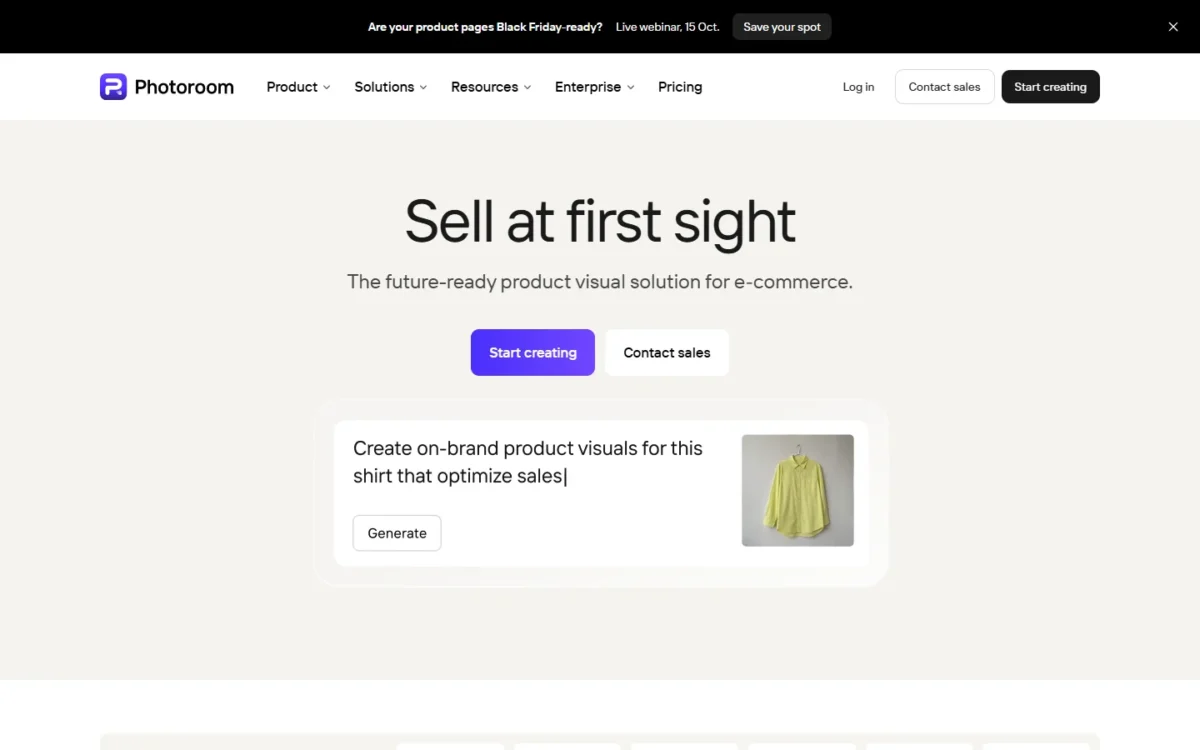
Photoroom focuses on marketplace-ready product images: fast cutouts, clean backgrounds, and listing-friendly exports. Free plans often meter exports; AI background styles may use a separate credit meter.
Pros
- Strong subject cutouts for catalogs and marketplaces
- Mobile + web for sellers who shoot on phones
- Templates aimed at product presentation
Cons
- Export and AI meters need watching on free tiers
- Less ideal as a general scenery or portrait prompt editor
Best for: ecommerce sellers and anyone building a consistent product catalog look.
Skip it if: you mostly edit people, travel scenes, or creative composites—an AI photo editor with prompts is a better fit.
5. Pixlr — Best lightweight browser editor
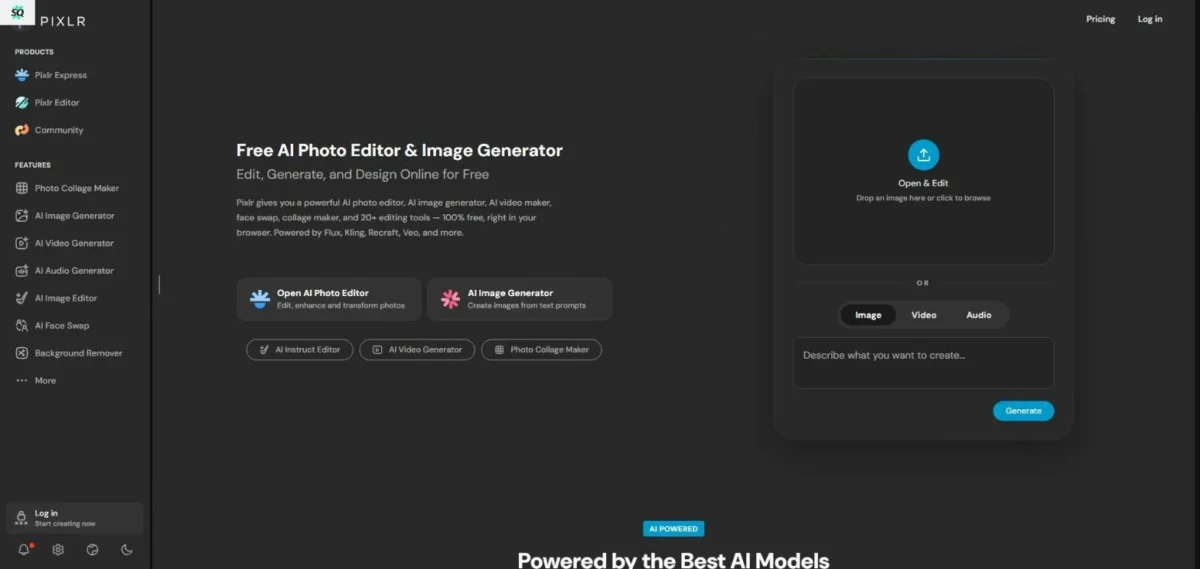
Pixlr combines browser editing with credit-based AI tools. You get browser-based adjustments plus AI helpers, without committing to a full Adobe-style workspace.
Pros
- Fast to open, low friction for casual edits
- Mix of classic tools and AI features
- Relatively approachable paid plans for light AI use
Cons
- AI usage is metered; check the current plan’s credit allowance
- Not as specialized as cutout or upscale-focused tools
Best for: people who want a free-feeling browser editor with occasional AI assists.
Skip it if: your main job is large prompt rewrites or print-critical color.
6. Topaz Photo — Best for noise reduction and upscaling
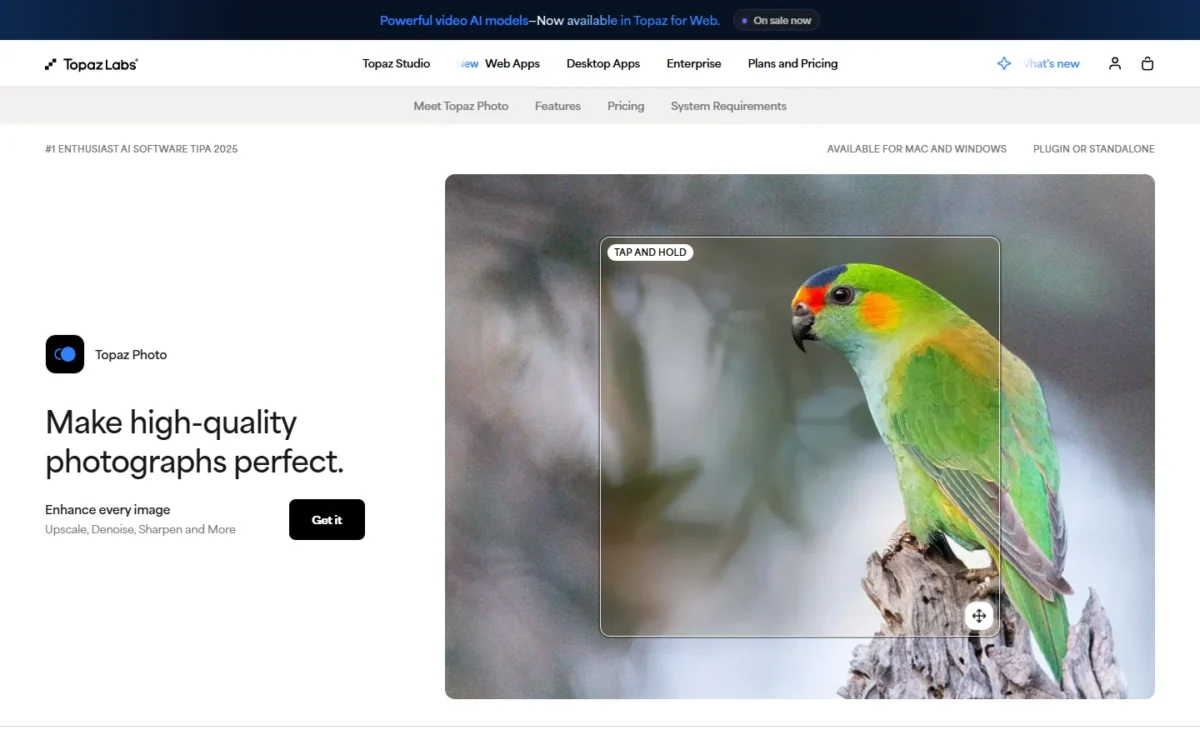
Topaz Photo is a desktop enhancement tool for sharpening, denoising, and upscaling. Topaz also offers separate web products; this comparison covers the desktop Photo app. It targets noisy, soft, or small files—useful when the photo is the right moment but the wrong technical quality.
Pros
- Focused on denoise, sharpen, and resolution recovery
- Desktop performance for heavier files
- Clear job: fix the file, not redesign the scene
Cons
- Typically paid; not a casual free web tryout
- Not built for conversational “change the background to a café” edits
Best for: photographers cleaning up soft or noisy captures before publish.
Skip it if: you mainly need object removal or style changes from a text prompt.
Which editor should you start with?
| Your situation | Start here |
|---|---|
| Describe the change in words, in the browser | GetAIPhotoEditor |
| Need layers and masks after AI | Adobe Photoshop / Firefly |
| Photo must land inside a designed layout | Canva |
| Marketplace product cutouts | Photoroom |
| Quick browser tweaks without a new stack | Pixlr |
| Noisy or soft files that need recovery | Topaz Photo |
Many people use more than one: an AI photo editor for the first creative pass, then a specialist or desktop tool when the file has to be perfect.
FAQ
What is the best AI photo editor for beginners?
A browser tool with short prompts is usually the easiest start. GetAIPhotoEditor is aimed at that path: upload, describe, generate, review. New visitors can try the AI photo editor with starter credits. If your work is mostly product cutouts, Photoroom may feel more direct.
Are free AI photo editors good enough?
Yes for trials and light use—if you accept watermarks, export caps, or daily limits. GetAIPhotoEditor lets you start with credits and buy more on the pricing page when you need them. For client deliveries, check output size, watermarks, and whether your plan allows commercial use.
Can AI photo editors replace Photoshop?
For many everyday cleanups, yes—an online AI photo editor is enough for object removal, backgrounds, and light retouch. For layered composites, print color, and pixel-perfect masks, desktop precision tools still win. AI is a speed layer, not always the final authority.
How do I get better AI edit results?
Be specific. Name the subject to keep, the change you want, and what must not move. After generate, zoom faces, edges, logos, and text. For area-focused prompts, see How can I edit a specific area of a photo using AI?. You can also browse more jobs on the tools page.
Start with a real photo
If your next job is “fix this existing photo with a clear instruction,” open the AI photo editor on GetAIPhotoEditor, upload the file, and describe the change in one sentence. Review the full frame before you publish.
Official product and plan sources
- Adobe Photoshop: editing tools, supported platforms, and purchase or trial options.
- Canva AI photo editing and Canva plans: editing features and plan-dependent AI access.
- Photoroom plans: product editing tools, exports, and AI allowances.
- Pixlr plans: editor subscriptions and AI credit allowances.
- Topaz Photo: the desktop enhancement product and links to Topaz’s separate web tools.
Prices, promotions, and allowances can vary by region and change after this review. Check the linked provider page before purchasing.